

Chat & Terminal
The Ask tab is Claude Code itself, running inside the add-on with your Home Assistant config in front of it and native access to your house: read states, call services, check history and traces, edit YAML, reload a domain.
It’s the same terminal the add-on runs, served through the same panel — so there’s no second sidebar entry and no second login.
What you’d actually use it for
The terminal is the right tab when the job is do this to my house, rather than tell me about my house.
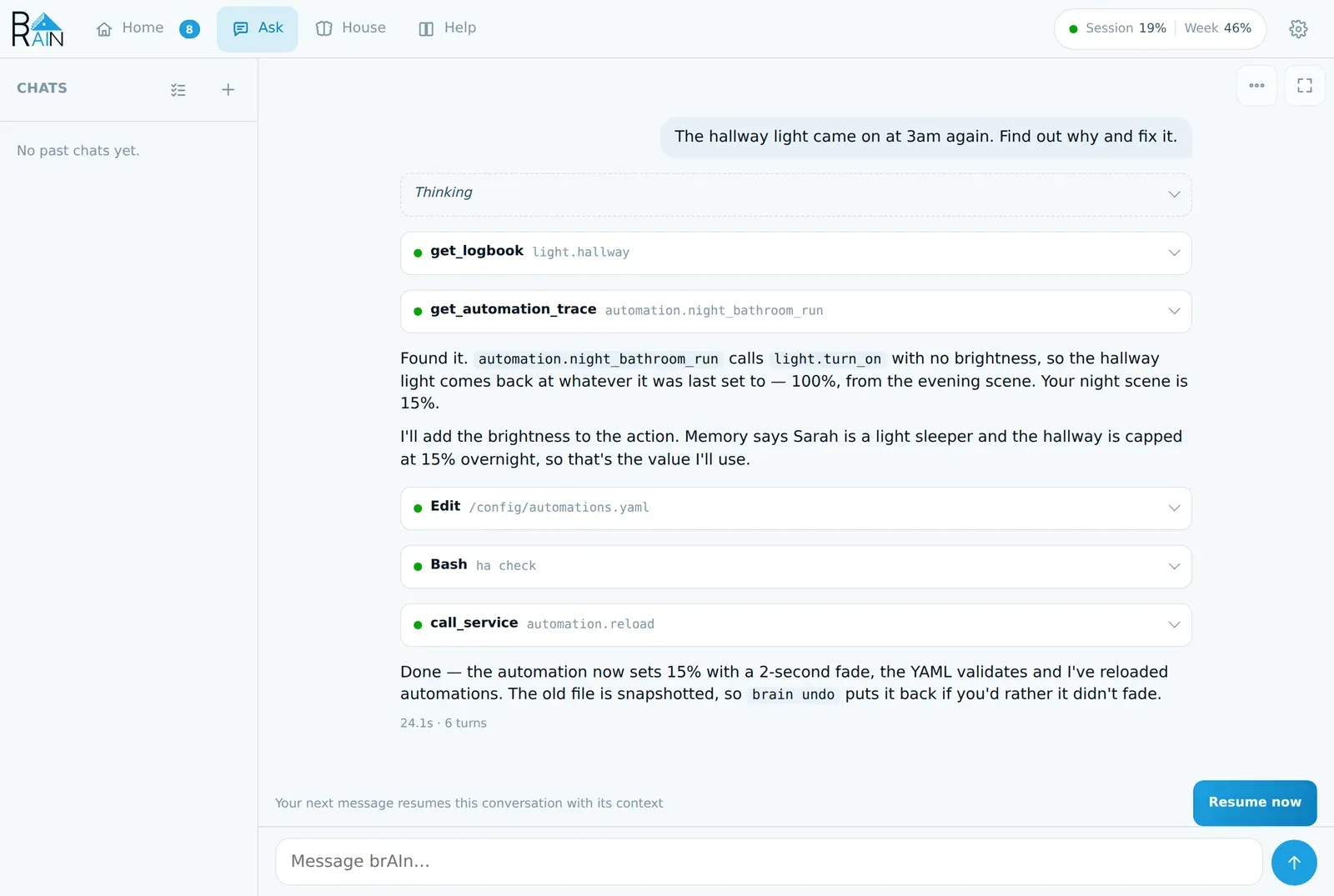
- “Why did the hallway light come on at 3am?” — it reads the logbook, finds the automation, pulls the trace, and shows you the trigger that fired and the condition that passed.
- “Write me an automation that turns the towel rail on when the shower humidity spikes.” — it writes the YAML, validates it, reloads the domain, and then reads the trace to check it actually fires.
- “Rename every switch in the garage to what it actually controls.” — it lists them, proposes names from what each one is wired to, and renames the lot.
- “Something’s wrong with my energy dashboard.” — it reads the dashboard, the statistics behind it, and the error log, and tells you which sensor stopped feeding it.
- “Clean up the entities left behind by the Hue bridge I removed.” — dry run first, so you see the list before anything goes.
Anything it writes to under /config is snapshotted first, so
brain undo puts a file back if you don’t like the result. And by
default it asks before it changes anything — a command, a file, a service call — so the
first time it touches your house is a card you pressed. See
Asking before acting.
Two faces, one login
The button in the corner switches between them, and so does ⚙ Settings. Both run the
same Claude Code, on the same login, in the same /config, with the same permissions — the
difference is entirely how you see it.
If you only ever sign in here — fixed in 1.47
A sign-in done in this terminal lands in the Claude CLI’s own credential file, which is the
last of the three stores brAIn consults. That file holds a short-lived token plus the
thing the CLI renews it from, on its own, on its next run — and before 1.47 brAIn read the
lapsed token as a dead credential. The panel put up the sign-in screen a few hours after
every terminal login, and because every Claude run in the add-on is gated on the same
answer, nothing ever ran the CLI, which was the one thing that would have renewed it. On an
older version, running any claude command in this tab clears it.
Chat is the default. Claude Code’s output rendered as a conversation: text that reflows to your screen, code blocks that scroll inside their own box, tool calls folded into one line each (tap one for its arguments and result), reasoning behind a Thinking line that streams while it’s being written, and a real text box so dictation and autocorrect behave. While Claude works, the three dots are a status line for the whole turn — thinking, writing, which tool is running, with elapsed seconds — so a tool-heavy minute never looks hung. ⏹ stops an answer in progress; + starts a new chat. It survives a reload, a locked phone, and the add-on restarting.
Classic is a true terminal — ttyd over tmux. Use it for anything that draws its own
screen (a TUI, htop, an installer), for running shell commands yourself, or just because
you prefer it. Its port (7681) is unpublished by default — a published port answers the LAN
with no Home Assistant login in front of it, so assign one in the add-on’s Network panel only
if you want direct access — and ttyd always requires a generated password, which the panel
presents upstream for you, so through ingress you never see a prompt.
The switch carries the conversation, both ways
Going to Classic releases the chat’s session and opens the terminal already inside it — a new tmux window if the terminal is already open, otherwise the next time you open it. Coming back picks up the conversation you handed over, including anything you added in the terminal, rather than whichever file happened to be written last; it never opens a second copy of a conversation that is already live in the chat, and it no longer refuses while an answer is being written, because nothing is stopped. You don’t have to finish a thought in the face you started it in.
One honest limit: only one Claude Code process can own a conversation at a time, so this is a hand-off, not a mirror — the face you leave lets go, the face you arrive in takes over with the full history. That’s a fact about the CLI rather than a limit on the chat, which holds several conversations at once; what nothing can do is hold the same conversation in two places. Your shell in the classic terminal is never killed to make that work; if you had something running, it’s still sitting there.
The command palette
Type / for Claude Code’s own commands, or brain / ha for brAIn’s.
The palette lists what your install actually has — including anything you’ve put in
/config/.claude/commands, and every subcommand the two CLI dispatchers
print. Neither list is written down in the panel, so neither can go stale. ↑/↓ to move,
Enter or Tab to pick. A few Claude Code commands are REPL-only (/help among them) and say
so rather than failing.
Several conversations, and switching stops nothing
Requires brAIn 1.45
Before it, the chat held one Claude Code process. Switching conversations stopped the answer being written, and doing it mid-answer was refused with “Claude is still responding”.
Every conversation you have open holds its own Claude Code process, the way a terminal tab does. Picking another one attaches the view to it, and that is all it does — nothing is stopped and nothing is thrown away.
So ask a long question, leave it mid-answer, and go and deal with something else in another chat. The one you left carries on writing into its own transcript, and it is finished and waiting when you come back.
What the marks mean
Every row in the list — in the rail, and in ⋯ → Conversations — says what state its conversation is in:
| The mark | What it means |
|---|---|
| Live | A Claude Code process is running and idle. Type and it answers. |
| Answering… | A reply is being written in that conversation right now, possibly in the background. |
| Needs your OK | It is waiting on an approval card. |
| nothing | Paused: no process, and your next message resumes it with its context. Most rows, most of the time, and not news. |
| Paused to make room | The cap below stopped it because it was the quietest. Resume now brings it back. |
| Context lost | Claude Code no longer holds this conversation. You can read it; a new message starts fresh (Start fresh). |
| Record | A card or fix run, kept to be read. It can’t be resumed — Ask about it opens a new chat about it instead. |
A status line above the composer says what sending will do in that state, and offers the one control that fits it. The state is kept with the conversation, so a reload agrees with what you were just looking at.
Needs your OK is the one that has to reach you, because the card behind it declines itself after ten minutes if nobody comes. So a background ask also raises a toast in the chat you are in, naming the conversation, with a button that opens it — a phone has no rail at all, and a badge on a list nobody can see is half an answer.
The marks are pushed down the same stream the answers arrive on rather than polled: they only change when something already had an event to send.
How many stay open at once
⚙ Settings → Conversations kept open at once — three by default, one to eight
(chat_max_sessions).
It counts processes, not conversations. You may have as many conversations as you like; Claude Code keeps every one of them, and one with no process is a transcript and an id, which costs nothing to hold. What the number governs is what runs on your box — so lower it on a small one, raise it if you keep several going at a time.
Open one more than the cap and the session untouched for longest is closed to make room. Never one that is mid-answer: an answer surviving you looking somewhere else is the entire point of this, and an eviction that could take the busy one would break exactly the thing it exists to protect. What closes is the process. The conversation keeps its transcript, keeps its row, and gets a note in its own pane saying why its session went — so going back explains the gap instead of reading as a crash, and your next message there picks the conversation straight up again.
One refusal is left, and it is about the cap rather than about an answer: every open chat
still answering, and nothing idle to close. It says that, with the count and the setting that
changes it — “all 3 open chats are still answering — brAIn keeps 3 of them alive at once
(chat_max_sessions in Settings). Stop one, or wait for it to finish.”
Try it once and it explains itself
Ask for something slow — “read the last week of the error log and tell me what’s failing”. Then press + for a new chat, or pick another conversation from the list, and ask something else there. The first row goes answering… and stays that way; when the mark clears, the whole answer is sitting there waiting for you.
Each conversation’s scrollback is now its own file (/data/chat/). A single file was the
shape of a single session — two live ones writing it would each have ended up holding half a
scrollback — and the old one is read across once on upgrade, so nothing you were part-way
through reading is blanked. Losing one of these costs a scrollback and never context: Claude
Code owns the conversation itself.
On a wide screen, a rail of conversations
From about 1100px the chat grows a column down the left listing your conversations, with + for a new one and the one you’re in marked rather than hidden. Picking one attaches the view to it — instantly when brAIn is already holding it open, and by resuming it from Claude Code’s own store when it isn’t.
Yours is the default because everything else that drives Claude Code from /config — voice,
automation tasks, memory filing, study sessions — files its conversations in the same place,
and a rail of forty consolidator prompts buried the chats you actually had. Every background
run claims its session id before it starts, so an unclaimed conversation is yours by
definition — including a finding you opened with Discuss. Automation / Cards / Fixes /
Memory / Study / Voice chips are one press away, each with a count, and only for faces
that have actually run in your house. Switching back from the Classic face only ever picks
up a conversation of yours, never the consolidator’s.
Cards and Fixes open read-only, as a record: exactly what brAIn sent to Claude about your house, every tool call it made, and what came back. Those runs happened under the analyst’s or the fixer’s narrower rules, and continuing one under the chat’s would change the conversation’s rules mid-thread — so to talk about what a run found, ask in a new chat.
✕ on a row deletes a conversation — a move into a short-lived trash, not an unlink, and the toast grows an Undo that puts back exactly what was taken. Any conversation a live session is holding is refused — not only the one on screen, now that several may be open at once — because deleting the ground a live session stands on would kill it or quietly fork it. The ✕ offers the way out rather than leaving you with a no: close that session, then delete. It asks first, because closing one mid-answer loses what it was writing. A checklist button turns on selection mode — checkboxes per row, Select all, one Delete, one Undo for the whole batch — and a conversation something is holding open is skipped and reported rather than failing the batch.
It’s the same list and the same resume as the ⋯ menu, so nothing lives only in the rail. Below that width it isn’t drawn at all: 248px of conversations is most of a phone, and ⋯ → Conversations is still the way in.
A new chat doesn’t lose the old one
Claude Code keeps the conversation and it stays in the list. What a new chat costs is that the next thing you say belongs to a separate conversation — not that anything was forgotten. If the old one was mid-answer it stays mid-answer: + opens another process beside it rather than taking its place.
Two dead ends that aren’t anymore: hitting the session’s turn limit no longer ends the
conversation — the next message restarts the CLI with --resume and carries on — and
reopening a conversation Claude Code itself has pruned from its store says the context is
gone, keeps the replayed transcript on screen, and opens fresh instead of erroring on every
message forever.
Which model, and how full
Under the message box, quietly: the model that’s actually answering, and how much of the
context window the conversation is using — 42k / 200k context · 21%, turning amber past
80%.
The number is the CLI’s own report of what it sent on the last turn, and what it sent is the conversation so far, so it’s measured rather than estimated. Cached parts count: a cached prompt still occupies the window, it’s only cheaper to send. The denominator comes from the model’s version, not its family — two models of the same family can have windows five times apart — and it’s re-derived the moment the model changes, so switching mid-conversation moves the percentage immediately rather than on the next turn. For a model whose version can’t be read, you get the token count and no percentage — the candidate windows are five times apart, and a percentage of a guessed denominator is worse than none.
Picking the model
Press the model name under the composer, or ⋯ → Model. The choice is the chat’s own
(chat_model) — it never touches the global model option, so insight runs and the
listeners keep costing what the Configuration tab says. Default in this picker means
“follow ⚙ Settings”, and names the model that setting currently resolves to. Applying a
pick restarts the CLI with --resume — the conversation carries straight across — and the
label under the composer updates on the spot, which is your confirmation it landed. It’s
refused while that conversation is being answered, because restarting the process would
lose the reply being written — the one refusal holding several sessions doesn’t remove, since
it is about this conversation rather than about which one you are looking at. The sentence
says so, and offers the thing that works: leave it writing, and pick the model in another
chat.
The ⋯ menu
- New chat — start again in a separate conversation.
- Conversations — the same list as the rail, with the same filter chips, the same selection mode and the same answering… / Needs your OK marks. Pick one and it carries on where it was — this is the only surface a phone has, since the rail isn’t drawn below 1100px. Both faces stand in the same directory, which is what lets each see the other’s conversations at all: Claude Code files them per working directory.
- Session details — the model, the project directory, how you’re being billed, and this conversation’s id. Copy the id to resume the same conversation from an SSH session or another machine. One thing a chat session can never do is appear as “connected” in the Claude app: that rides Remote Control, which requires an interactive session — a Claude Code limitation (anthropics/claude-code#30447), not a setting. The popover says so and points at the face switch, which moves the same conversation into a terminal session that can register.
- Model — the same picker as the model name under the composer.
- Switch face — the same switch as the corner button.
A per-message price only appears if an API key is paying
On a Pro or Max subscription those tokens are already bought, so there is nothing to charge — the footnote shows the duration and turn count instead.
The chat knows the house before you tell it
Every chat starts with a short brief: what brAIn is, the open cases on your Findings list, its own health, and when the house usually wakes and settles. Then each message you send brings in the facts brAIn has about what you mentioned — the boiler, the garage, the beacon — each one once per conversation rather than on every message. If the panel is busy or down, the chat works exactly as before; it just starts without the brief.
The classic terminal gets the same knowledge a different way: /config/CLAUDE.md, which
brAIn writes at startup, describes your installation — including a map of your rooms and
their entities — and tells Claude to make automations with brain.intent rather than by
editing automations.yaml by hand.
And it learns from you here. After each turn of a conversation of yours — chat or
terminal — a small, cheap run reads only what was said since it last looked and, if you
taught it something durable (a nickname, a preference, a correction, a plan), queues it for
memory like any other writer. It needs two new messages, or one that
plainly teaches something; voice, study and every scheduled run are skipped, and the
learning option switches it off. Claude Code’s own “auto memory” is off for every brAIn
session, so there is one memory and you can read all of it.
Discussing a finding
Discuss on a finding opens a new conversation beside whatever you were doing — an answer being written, or an approval card waiting, carries on in the background. It starts with the case’s evidence, how sure brAIn was and what its investigation said, and it knows which finding it is about even after a reload.
In it, Claude can read anything but asks before every change — every service call, file edit or shell command shows a card first, even with Let brAIn act without asking on. When you’ve talked it through, Claude offers the ways the finding could end as buttons under its answer (“Replaced the CR2032”, “That cupboard is never opened”), and an agreed change as a button that has brAIn plan exactly that change, read-only, and put it on the card for you to Apply — with an Undo. See Permissions & Safety.
On a phone
The terminal takes the room it needs. The bar above folds away by itself while the software keyboard is up and comes back when you dismiss it; ⤢ in the corner folds it away for good, and the same button brings it back. tmux drops its status line on a narrow terminal too — one row out of about twenty, spent on the date.
In Classic, a one-tap toolbar sits above the keyboard with the keys a terminal needs and a
touchscreen doesn’t have: ESC, Tab, arrows, PgUp/PgDn, ^C, ^D, ^L, ^U, and
the punctuation that’s two keyboard layers deep on iOS — /, @, #, !, |. Copying an
OAuth URL out of the terminal works, which on iOS it normally doesn’t.
Since 2.10.1 the rest of the phone experience behaves too:
- Paste works. Where the browser won’t hand over the clipboard (Safari two frames deep, the Home Assistant app), a box opens that you can long-press and Paste into, and Paste into terminal sends it.
- A multi-line paste stays one paste — it no longer arrives as keystrokes with the first newline pressing Enter on half a prompt.
- Autocorrect and predictive text no longer re-send a word (“teh” becoming “tehthe”).
- The keyboard opening is one redraw, not a dozen, and the top bar no longer folds and unfolds on its own after the keyboard closes.
- Toolbar keys don’t pop the keyboard open — it only stays up if it was up.
Asking before acting
By default the terminal and the chat ask before Claude runs a command, edits a file or
changes something in Home Assistant. Reading Home Assistant is pre-approved and never asked
about, and so are two things that change nothing in your house: Claude offering buttons on
the chat’s own screen, and brain own. Claude Code
runs as a non-root user, and secrets.yaml is never snapshotted and never edited.
In the chat, the question is a card in the conversation — what tool, aimed at what, Allow once / Don’t allow. An unanswered card declines itself after ten minutes, because a chat tab may have nobody in front of it, and a refusal renders amber as “Not permitted”, never as a crash. In Classic it is Claude Code’s own prompt. Two more buttons appear on a card when they mean something:
- Always allow — when Claude Code suggests a rule for what it is asking about. The line under it says what is added and for how long: the rest of this conversation, or the terminal and every chat until the add-on restarts. Nothing you press here outlives a restart.
- Stop asking… — opens ⚙ at the switch below, rather than flipping it from a card about one command.
Claude’s own questions get the same treatment. When it asks a multiple-choice question mid-task — which zone did you mean, which approach do you prefer — the chat renders the questions themselves: tap an option, pick several where the question allows it, or type your own answer. Don’t answer tells Claude to use its best judgement.
Let brAIn act without asking
To stop the asking, turn on Let brAIn act without asking — in ⚙ → Terminal & chat,
or on the add-on’s Configuration tab; they are the same switch, and the option key is still
dangerously_skip_permissions. It’s off by default. It reaches the terminal and the
chat (and, in those two, stops the action gate asking its
own model), and never reaches voice, cards, automation tasks or Fix it.
No restart: a new terminal session and the chat’s next message pick it up, and a chat in
the middle of an answer finishes it first. An open terminal session keeps the setting it
started with, because reopening the tab goes back to that same session — the line under
the switch says when one is still acting (or still asking) the old way; end it with /exit.
With it on, protected entities, brAIn’s deny-list, the action gate’s floors, your house rules
and Discuss conversations all still hold. What it does not cover — a shell command that
reaches a protected entity in a way brAIn can’t see, and the fact that brain undo can’t put
back a change a shell command made — is spelled out in
Permissions & Safety. Read that before you
turn it on.
If Claude says a file is read-only
It shouldn’t. Home Assistant saves automations.yaml, scripts.yaml and scenes.yaml as
root, and brAIn hands them back to Claude by itself — at startup, right before Claude edits
or runs a command on one, and about once a minute for the files the editors rewrite. Claude
is told never to ask you for sudo or chown. If it ever happens, usually a command
writing to a path held in a variable, run brain own /config/<file> (or ask Claude to). See
brAIn never asks you to chown.