

Quick Start
Five minutes from zero to an AI that knows your house.
Prerequisites
- Home Assistant OS or Supervised (the add-on system requires the Supervisor).
- An Anthropic account — a Claude Pro or Max subscription is the most economical option, since Claude Code authenticates via OAuth and uses your subscription. An API key works too if you’d rather pay per token (note: usage-limit sensors need the subscription login).
- A modern 64-bit HA host (any Pi 4/5, x86 NUC, or generic 64-bit server). Older 32-bit ARM boards (Pi 3 and earlier) aren’t supported — prebuilt images exist for
amd64andaarch64only. - ~1 GB of free RAM beyond what HA itself uses. Fast voice mode keeps pre-warmed workers around (~150–300 MB each, max 3); you can turn it off on tight hosts.
Back up Home Assistant first — somewhere that isn’t this machine
brAIn edits your real configuration: automations, dashboards, helpers, entities. It
snapshots files before it changes them and brain undo puts them back — but that is not a
backup you can restore from. Settings → System → Backups, then copy it off the device.
This is also the first thing the panel’s own first-run screen tells you.
Install it
-
Add the repository. In Home Assistant: Settings → Add-ons → Add-on Store → ⋮ → Repositories, then paste:
Repository URL https://github.com/bruhautomation/BRUH-HA-Apps -
Install the add-on. Find brAIn in the store and click Install, then Start when it’s done. The install pulls a prebuilt image from
ghcr.iorather than building on your machine — a download, not minutes of SD-card writes, and everyone gets the identical image. -
Restart Home Assistant — required on first install so HA loads the brAIn integration: Settings → System → Restart. A persistent notification tells you whenever a restart is needed (first install and add-on version upgrades); add-on restarts within the same version don’t need one.
-
Set up the integration. After the restart, HA discovers it automatically — accept the prompt in Settings → Devices & Services. This registers the conversation agent, the usage-limit sensors, the learning sensors, the eleven
brain.*core services, and the 69 Power Tools admin services. -
Sign in with Anthropic. Open brAIn in the HA sidebar and complete the sign-in. This is the only login — the terminal, insight generation, voice, and memory consolidation all share it.
Let it learn your home
A fresh install has no cards, on purpose. A generic “Energy” or “Climate” card about a home brAIn has never looked at says nothing useful and costs tokens on every run, forever.
-
Press “Start learning.” brAIn studies your house one topic at a time — naming and areas, occupancy rhythms, energy, climate, device reliability — and files what it finds in memory. This takes a few minutes and runs in the background; close the panel and come back, it picks up where it left off.
-
Pick your cards. When the study finishes, brAIn proposes a handful of cards grounded in what it actually found, each with a one-line reason citing the evidence. Tick the ones you want. Nothing generates, and the scheduler stays idle, until you do.
-
Watch the first run. Cards generate one at a time through a queue (friendly to subscription rate limits), so they fill in over a few minutes.
If your home is too sparse to learn from, brAIn says what’s missing instead of inventing generic cards — add more entities, let history accumulate, and run it again. There is deliberately no canned fallback: cards about a house it can’t read would be noise on every run, and would teach you to ignore the dashboard.
Try it
Open Home → Insights and ask something you’d otherwise have gone digging for. The answer comes back as a card:
How quickly does the downstairs humidity drop when the AC turns on?Which of my devices have stopped reporting?What's my standby power, and what's causing it?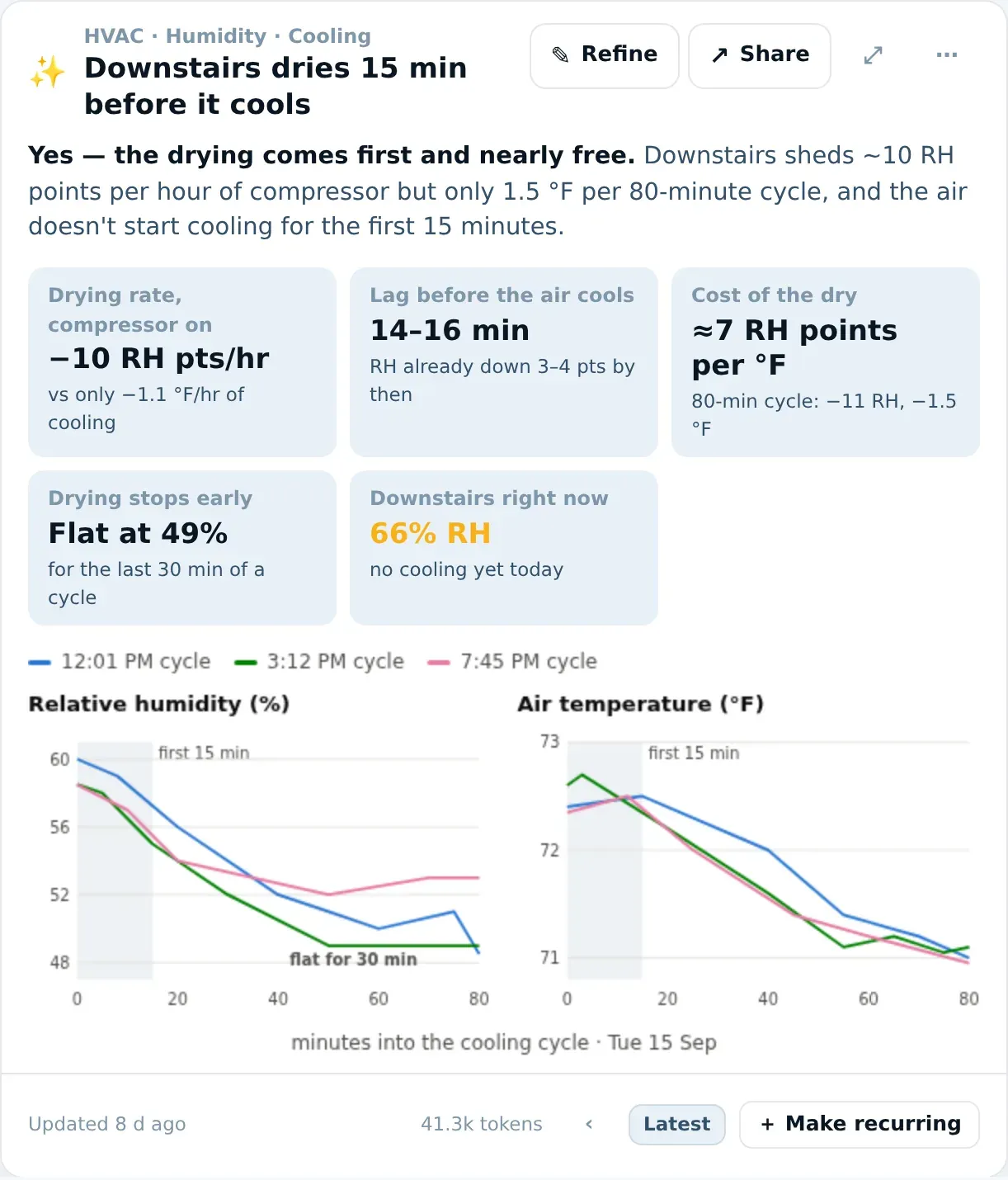
Not quite what you wanted? Press ✎ Refine and say what should change — “compare it with upstairs”, “just the chart”. Want it somewhere else? ↗ Share copies it as a picture or adds it to a dashboard. More about cards →
Or switch to Ask — Claude Code as a chat — for things that need doing rather than answering:
Why did the hallway light come on at 3am? Fix it.Write me an automation that turns the towel rail on when the shower humidity spikesRename the switches in the garage to what they actually controlThen look at Home → Findings. The number on the Home tab is what brAIn already thinks is broken in your house, each with a row of answers: Fix it, Add to list, Dismiss, Not a problem.
Next steps
- Use brAIn as your voice assistant. Go to Settings → Voice Assistants → [your pipeline] and pick brAIn as the conversation agent. Give the agent a name, a model, (optionally) a personality, and what it can reach. The default, Voice assistant, sees and controls only what you’ve exposed to Assist (Settings → Voice assistants → Expose) and can’t run shell commands or read files; Whole house and Full admin widen it, per agent.
- Teach it something. Say “remember that we call the office lamp the beacon” to a voice assistant, or run
brain memory add "…"in the terminal. It lands in the same document every other surface reads. - Answer its guesses. When brAIn believes something it can’t confirm, it asks on the Findings tab as a yes/no — everything waiting on your decision in one list. Two taps settle it.
binary_sensor.brain_memory_waiting_on_youexists so you can push that to your phone — a guess sitting in a panel nobody has open just expires. - Get findings on your phone. Set
findings_notify_serviceto yournotify.mobile_app_*service in the add-on config — one option turns findings into phone pushes with answer buttons, no automation needed. By default only critical ones ring;findings_notify_min_severitychanges that. - Trigger it from automations.
brain.askanswers a question with data an automation can branch on;brain.run_taskruns a job in the background. Automations → - Let it manage your devices. With the ESPHome or Music Assistant add-ons — or BRUH Minecraft, BRUH Print and BRight — installed, just ask in Ask: “flash the porch sensor”, “clear out the stale speakers”, “print a label that says chili”. There are no separate tabs for them.
- Show a device as what it is. “Show the back door sensor as a door” or “the bedroom fan is on a smart plug — show it as a fan”. Show as →
- Decide how much it asks. Off by default, the terminal and the chat ask before changing anything; Let brAIn act without asking (⚙ → Terminal & chat) stops that. Reference →
- Know a leak will reach you. Leak, smoke, CO and gas alarms are sent the moment they trip, whatever else brAIn is doing — set
findings_notify_serviceso they reach your phone. Permissions & Safety → - Tune behaviour. See the Reference for every config option and the full service / sensor / tool list.
Common first-install hiccups
| Symptom | Fix |
|---|---|
| Add-on won’t start | Check the Log tab. Almost always an architecture mismatch — prebuilt images exist for amd64 and aarch64 only. |
| Integration not discovered | You probably skipped step 3. Restart HA, then check Settings → Devices & Services (or add brAIn manually). |
| Sign-in fails | Verify the HA host can reach console.anthropic.com. After updates, you may need to re-authenticate. |
| The panel says you are signed out, but the terminal works fine | Fixed in 1.47. Before it, brAIn read the Claude CLI’s short-lived access token as a dead credential a few hours after every terminal sign-in, put up the sign-in screen, and then never ran the CLI — which was the one thing that would have renewed it. The workaround on an older version: open Ask, switch to the classic terminal, and run any claude command. That renews the token and clears the verdict. |
| The terminal asks for a second login | It shouldn’t — one credential is shared with the CLI both ways. If it does, run brain doctor; the auth check names the file it found and the one it expected. |
| “It can’t see my entities” | Confirm enable_ha_mcp_server: true, then run brain doctor in the terminal — it drives the MCP server end-to-end and reports any tool that errors. |
| Learning seems stuck | Study sessions are deliberately long-running (up to study_timeout_minutes, default 30). The progress list shows which topic is in flight; the add-on log shows the session. A session that actually fails names its real reason in the log — a timeout says timeout — rather than reporting a generic failure. |
| Usage-limit sensors stay unavailable | They need an OAuth/subscription login (not an API key). New installs show data once you’ve used Claude; the sensor’s error attribute explains why if not. |